Favicon
Check declarations, icon files, Google Search requirements, touch icons, and manifest coverage.
Open checkerUse this free icon checker to test size, format, and transparency before you publish. Each result shows the file facts and the official rule.
Maintained by Icon Checker
App icon files stay in your browser. No upload or sign-up required.
Checking a website? Open the Favicon Checker
Icon check
Drop a PNG here
Use a PNG for the selected iOS or Google Play target.
App icon files are analyzed in this browser and are not uploaded.
Measure the file's size, format, and transparency, then compare the evidence with the rules for the release target you choose.
Icon Checker keeps three separate audit paths, not one measurement reused everywhere. A public website URL goes through the favicon audit. Local PNG files are checked against the app icon target you choose, with each target using its own rules and evidence.
Use the icon checker that matches the asset you are releasing. A pass on one page does not apply to the others. Favicon, App Store, and Play listing files are different assets with different rules.
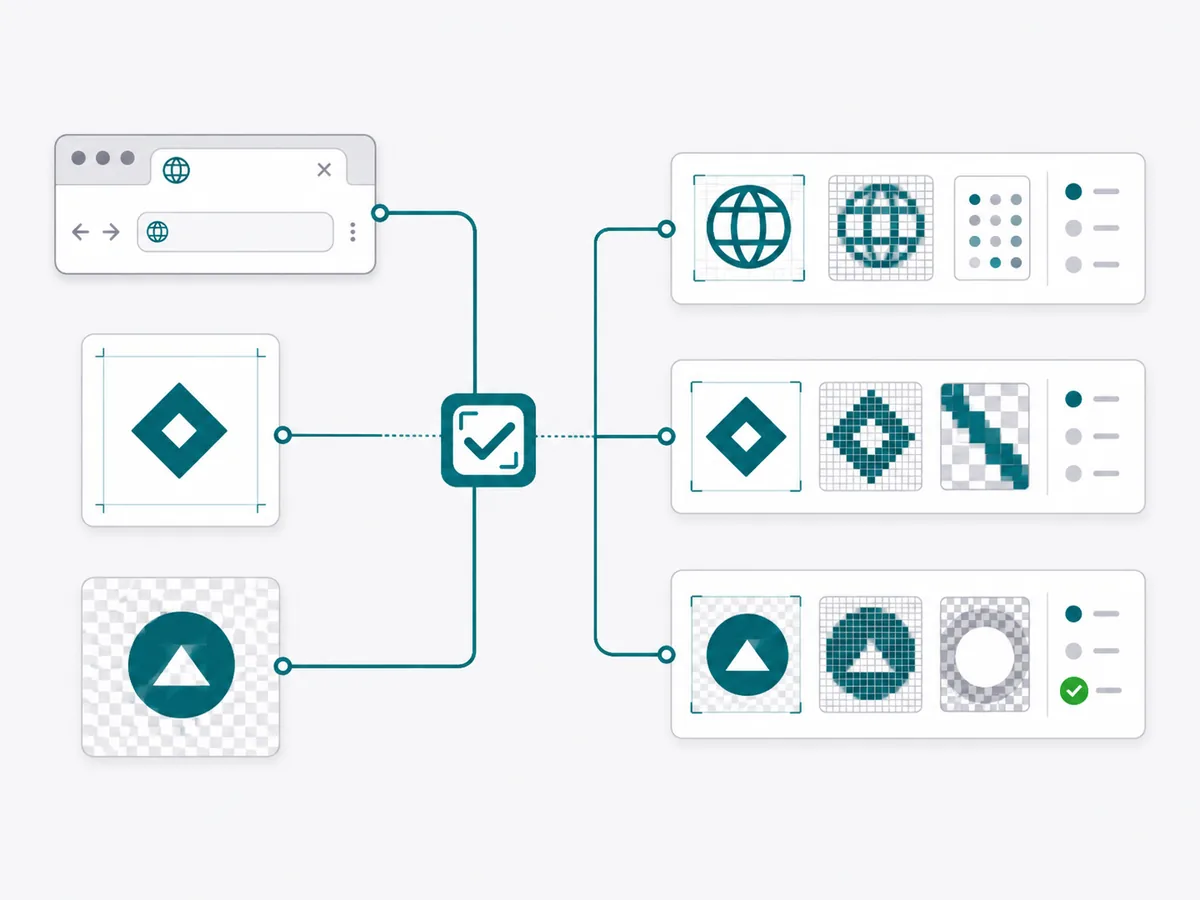
Choose where the icon will be used. Each icon checker applies a different set of rules.
Check declarations, icon files, Google Search requirements, touch icons, and manifest coverage.
Open checkerCheck a 1024 x 1024 PNG for dimensions, alpha, transparency, and small-size clarity.
Open checkerCheck a 512 x 512 RGBA PNG for file size, sRGB, and transparency.
Open checkerChecking share tags instead of an icon file? Open the Open Graph Checker.
This icon checker reads a local iOS or Play file, then compares the measurements with the selected platform rules. Every result shows what was measured, what was required, and where the rule came from. Favicon checks are a separate URL audit.
Decode the PNG and inspect its real structure.
Record dimensions, bytes, alpha, color data, and pixels.
Use only the rules for the selected platform.
Show the value, requirement, fix, and source.
A technical pass documents file facts. It cannot judge brand quality or predict store approval. Each checker also leaves a different remainder for people: iOS presentation and App Review, Play listing mask and launcher assets, or live browser and search display.
An icon can look finished and still contain a measurable export error. Fix the file problem for the target platform instead of applying one generic rule to every icon.
Check the decoded width and height against the selected target. Use the original artwork when re-exporting instead of enlarging a small raster image and introducing soft edges.
Apply the platform-specific result. A Primary iOS icon can fail for alpha metadata, while a Google Play listing icon may contain transparency and a favicon follows another set of format and surface rules.
Trust the detected file signature and successful decode, not the extension. Re-export a standard PNG when the structure is invalid or the browser cannot decode the image completely.
Convert artwork to sRGB when the target requires it and embed the profile during export. An untagged file should remain a warning when the original color intent cannot be proved.
Keep the underlying artwork square unless the official asset format says otherwise. Let the operating system or store apply its final corner mask and shadow treatment.
Use the Scale Rail or surface previews to inspect reduced sizes. Simplify tiny text, thin strokes, crowded detail, or weak contrast when the mark stops reading clearly.
There is no universal pass for an icon file. Each checker uses a different input and keeps hard requirements separate from recommendations and manual design review.
| Target | Input to check | Key evidence |
|---|---|---|
| Website favicon | Public page URL | HTML declarations, reachable files, decoded sizes and formats, Google Search eligibility, Apple touch icon, and manifest coverage |
| iOS Primary / Any | 1024 x 1024 PNG | Exact square dimensions, PNG structure, alpha or tRNS metadata, decoded pixels, and small-size review |
| Google Play listing | 512 x 512 PNG | 32-bit RGBA, exact byte limit, sRGB metadata, transparency evidence, decode, and small-size review |
Run the icon checker on the final asset close to release, then keep the evidence with the export decision. This prevents a corrected file from being replaced by an older draft later in the workflow.
Decide whether the asset is a website favicon, an iOS Primary icon, or a Google Play listing icon. Do not use one result to approve a different asset role.
Run the file or public URL that is actually scheduled for release. Read measured and expected values before changing artwork or export settings.
After deterministic failures are fixed, inspect the icon in the browser, built app, store workflow, and small-size previews relevant to the release.
Correct invalid bytes, dimensions, format, alpha, byte limits, or unreachable resources before reviewing visual polish.
A warning means evidence is incomplete or a recommendation needs review; it is not a hidden pass.
Do not confuse a touch icon with an App Store icon or a Play listing image with an adaptive launcher icon.
Make sure the mark, spacing, and contrast survive the smallest presentation that matters for the target.
Every re-export can change metadata, file size, color profile, or alpha behavior, so run the corrected asset again.
A technical pass documents measured rules. It cannot guarantee search display, device rendering, or store approval.
Short answers about this free icon checker and which page to open next.